
The following examples demonstrate how tasks in Moderan can be used to manage time-critical activities and ensure responsibilities are clearly assigned and tracked.
They illustrate practical workflows for handling building certificate renewals and rental contract end processes, including task creation, record updates, and task completion once the required actions are carried out.
Certificate Renewal – Step-by-Step Instructions
Goal: Track a certificate renewal using a task, upload the renewed certificate to the Building card, and close the task once the process is completed.Step 1 — Create a Task under Interactions & files [Property Manager]
▶ Assets > Building card > Interactions & files
- Open the relevant Building card in Moderan
- Go to the Interactions & files section
- Click +ADD NEW
- Create a Task with a clear description (e.g. Renew BREEAM certificate). If needed, include additional instructions as steps in the description.
- Set the Due Date for the certificate renewal
- Assign the task to the responsible person
- and Save
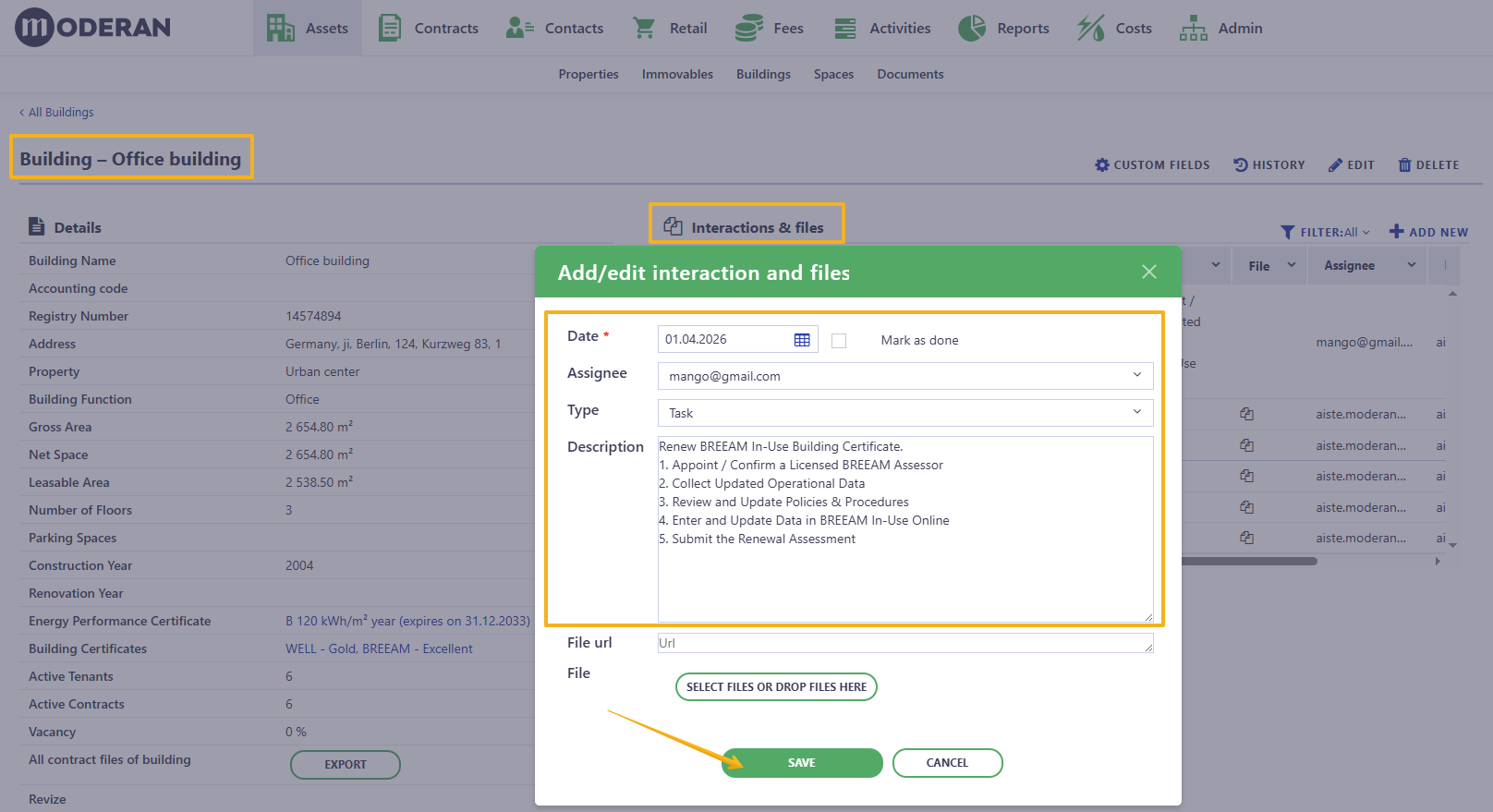
Assignment notification. If you assign the task for someone else and the date is today or later, that person gets an email notification when task is saved.
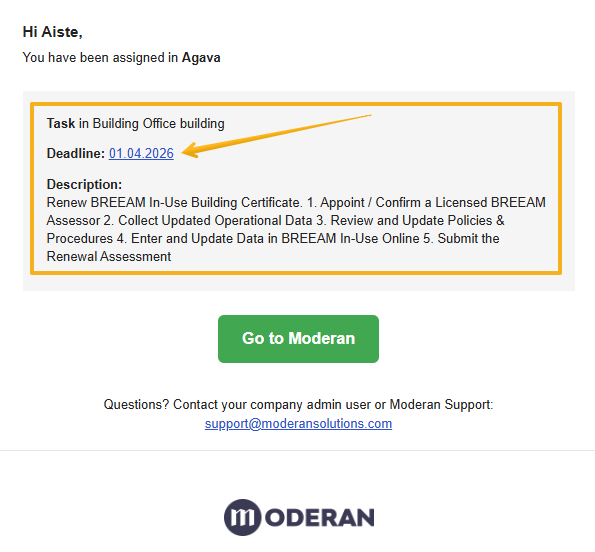 Hint: assignee can open the task straight from their email by clicking on the Deadline date.
Step 2 — Renew the Certificate [Assignee]
▶ Activities
The assigned person reviews the task in their Activities task list and proceeds with the certificate renewal process.
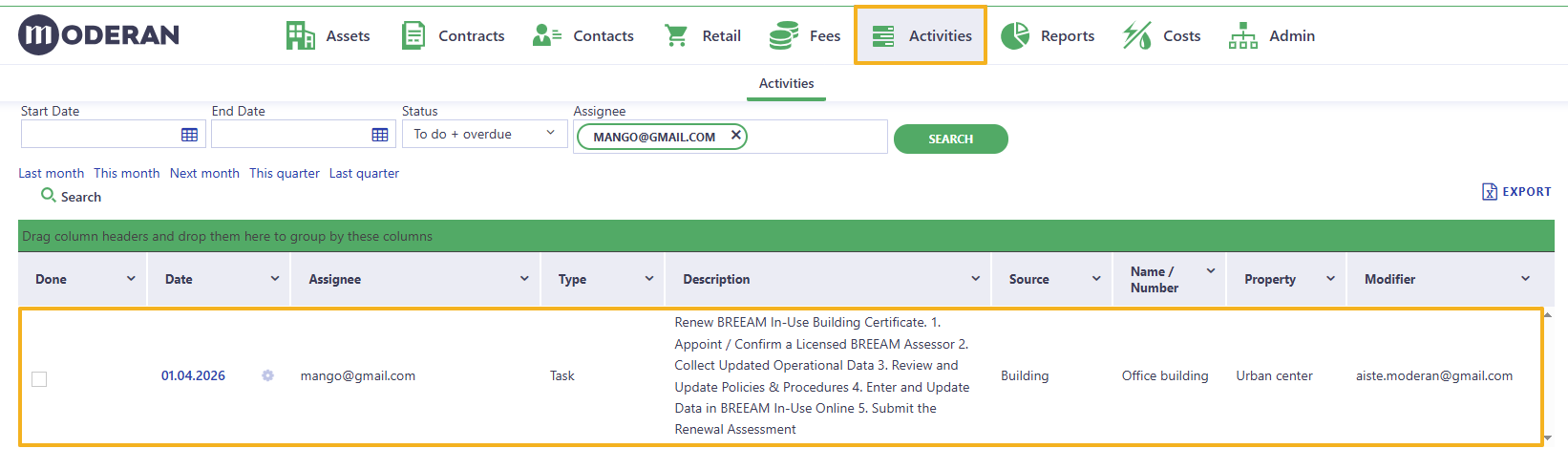
Step 3 — Add the Certificate to the Building Card [Assignee]
▶ Assets > Building card
- Open the same Building card.
Hint: the most convenient way to access the task is through Activities list. When you click on the Task date it automatically opens up the right location, where the task has been created (in this case - Building card).
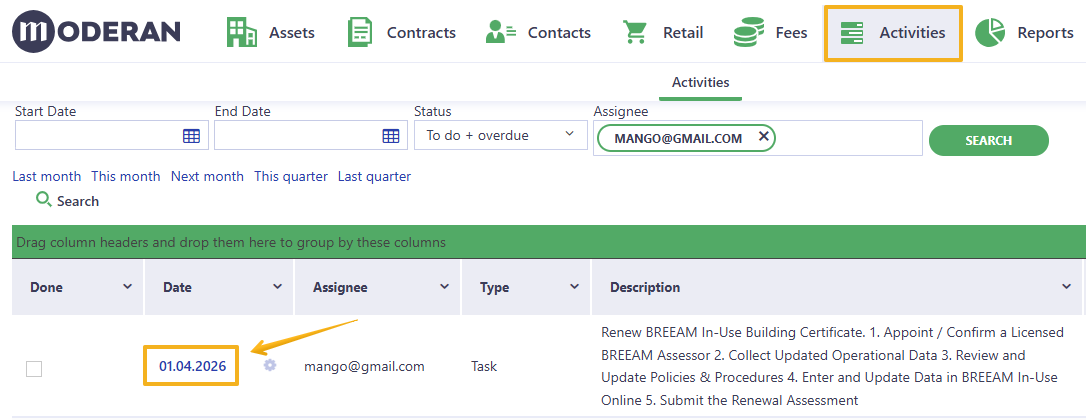
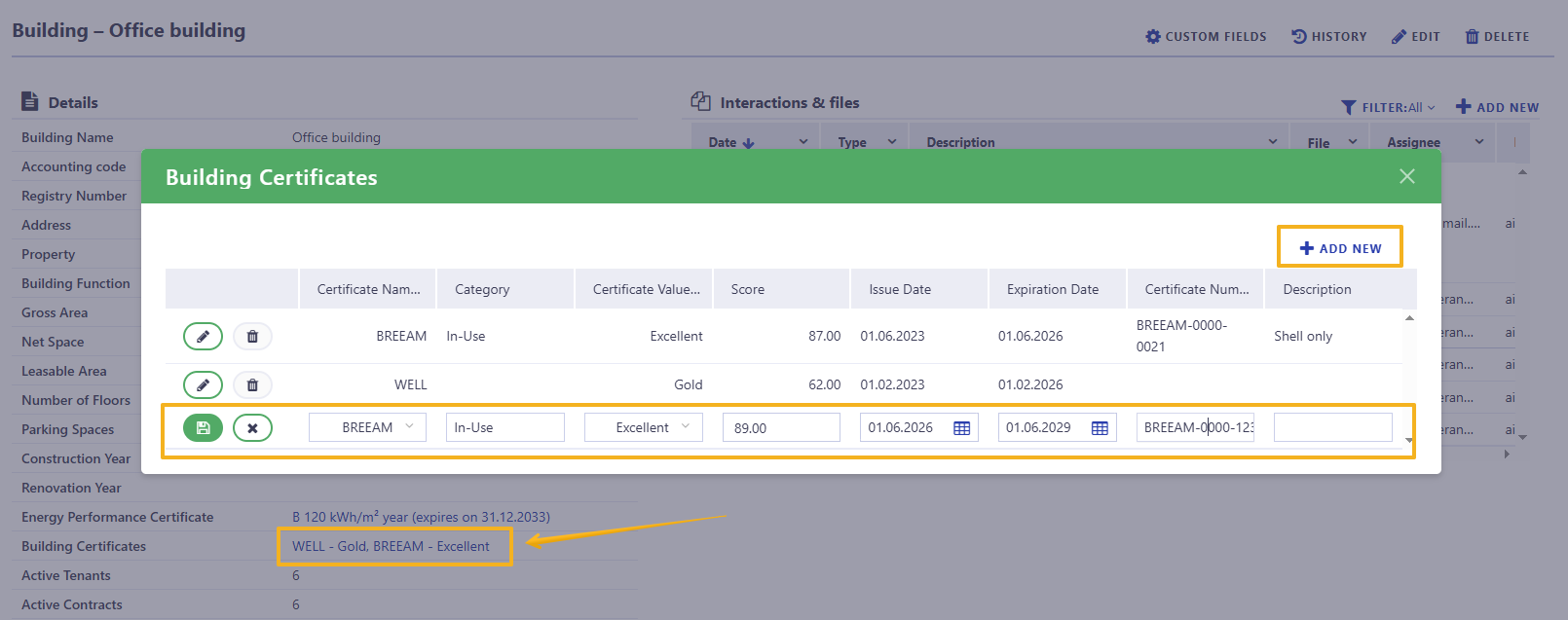
- In the Building Certificate field, add a new entry and fill in all required details for the renewed certificate
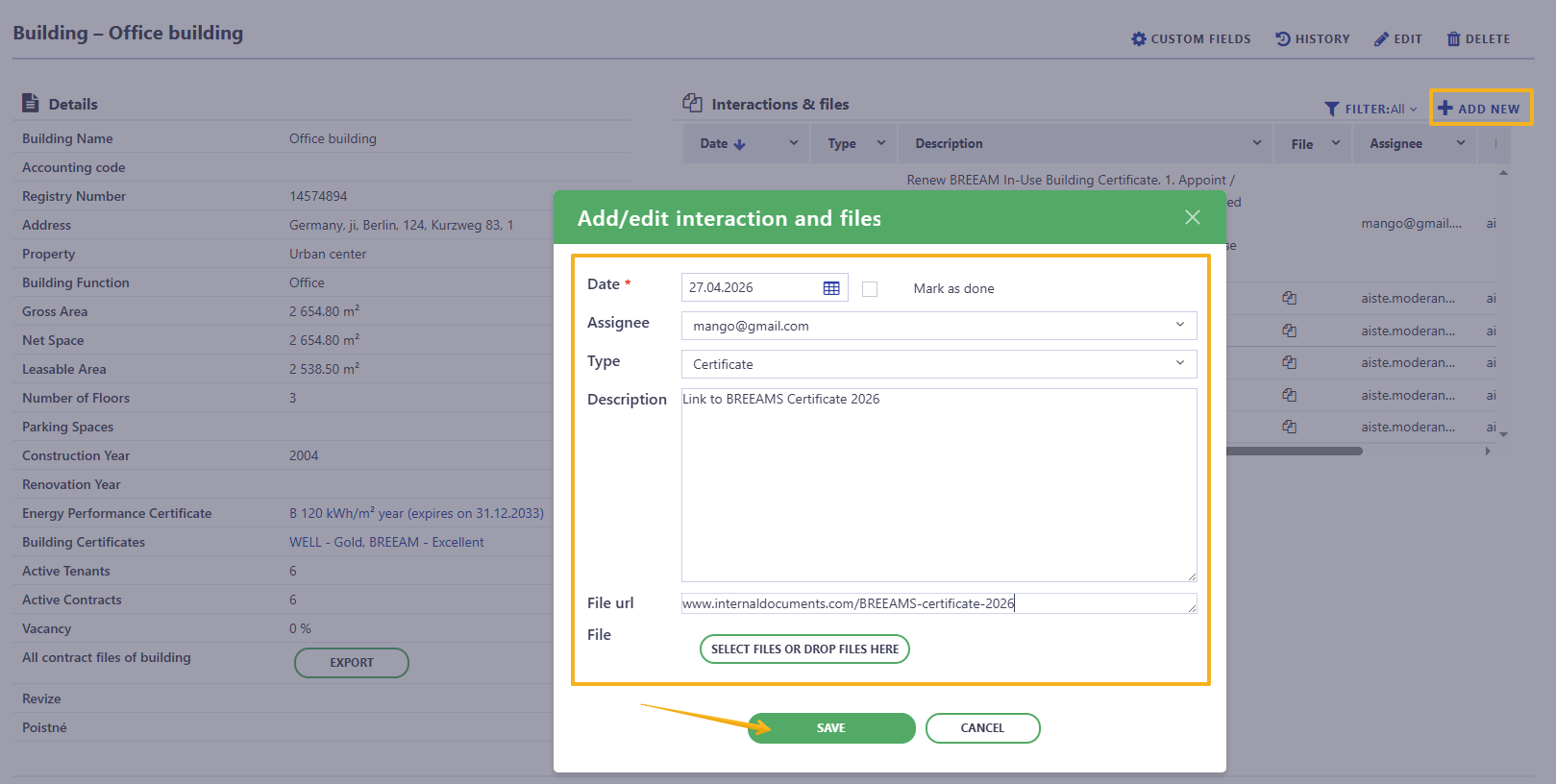
- Upload the new/renewed certificate file in the Interactions & files section
- Verify that the certificate is saved and visible on the Building card
Step 4 — Mark the Task as Done [Assignee]
▶ Assets > Building card > Interactions & files
- In the Interactions & Files section of the same Building card open the Certificate renewal task
- Change the task status to Done. You can also change the Date to the day, when the task has been accomplished and add additional notes for future record
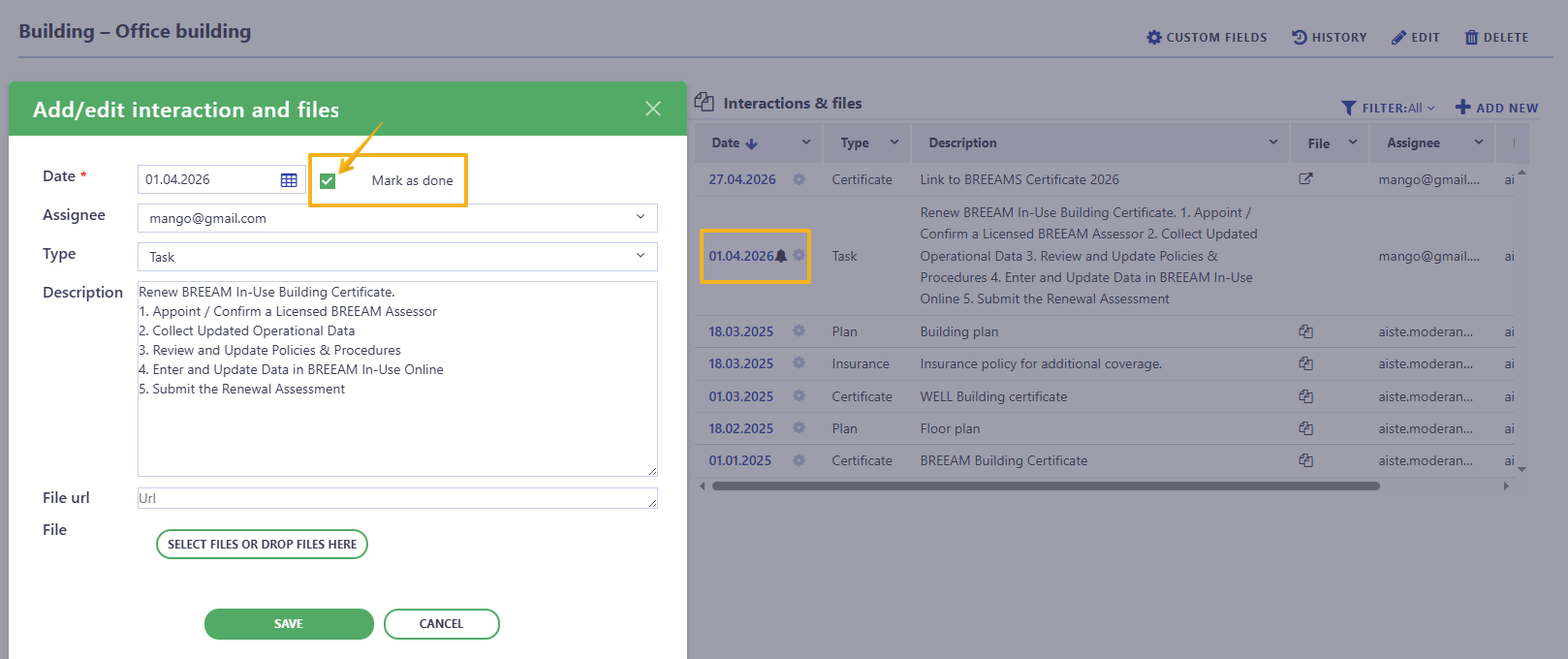
- Once the task is marked as Done, it is removed from the active tasks list and serves as a record that the certificate renewal has been completed
Step 5 — Overview of the Task completion [Property Manager]
▶ Activities
In Activities list you can keep an eye on the Tasks, their statuses for each Team member (or All).
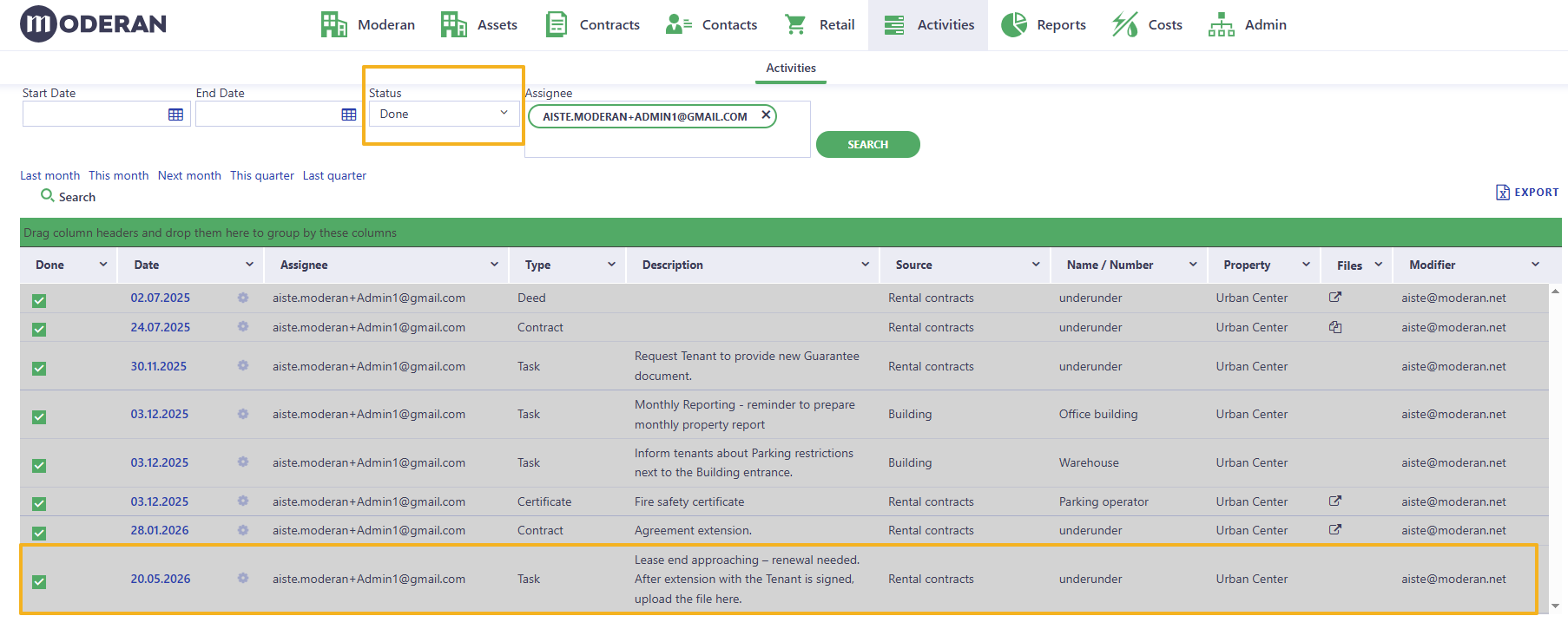
When you first open Activities, it displays only the To Do tasks assigned to you. However, in the Activities list you can filter or sort tasks by Status and Assignee, allowing you to view:
- To Do tasks (open and pending), and
- Done tasks (completed activities):
You can read more about Activities here.
Lease Extension – Step-by-Step Instructions
Goal: Create a task to notify the lease manager that a rental contract is approaching its end, have the lease extended, update the contract in Moderan, and close the task.Step 1 — Create a Task for Lease Renewal [Property Manager]
▶ Contracts > Rental Contracts > Interactions & files
- Go to the Rental Contract that is approaching its end date
- In the Interactions & Files related section, click +ADD NEW
- Create a task with a clear description, for example: Lease end approaching – renewal required. Add any additional notes or instructions if needed.
- Set the Due Date to a suitable lead time before the lease end (so the manager has time to act)
- Assign the task to the Lease Manager
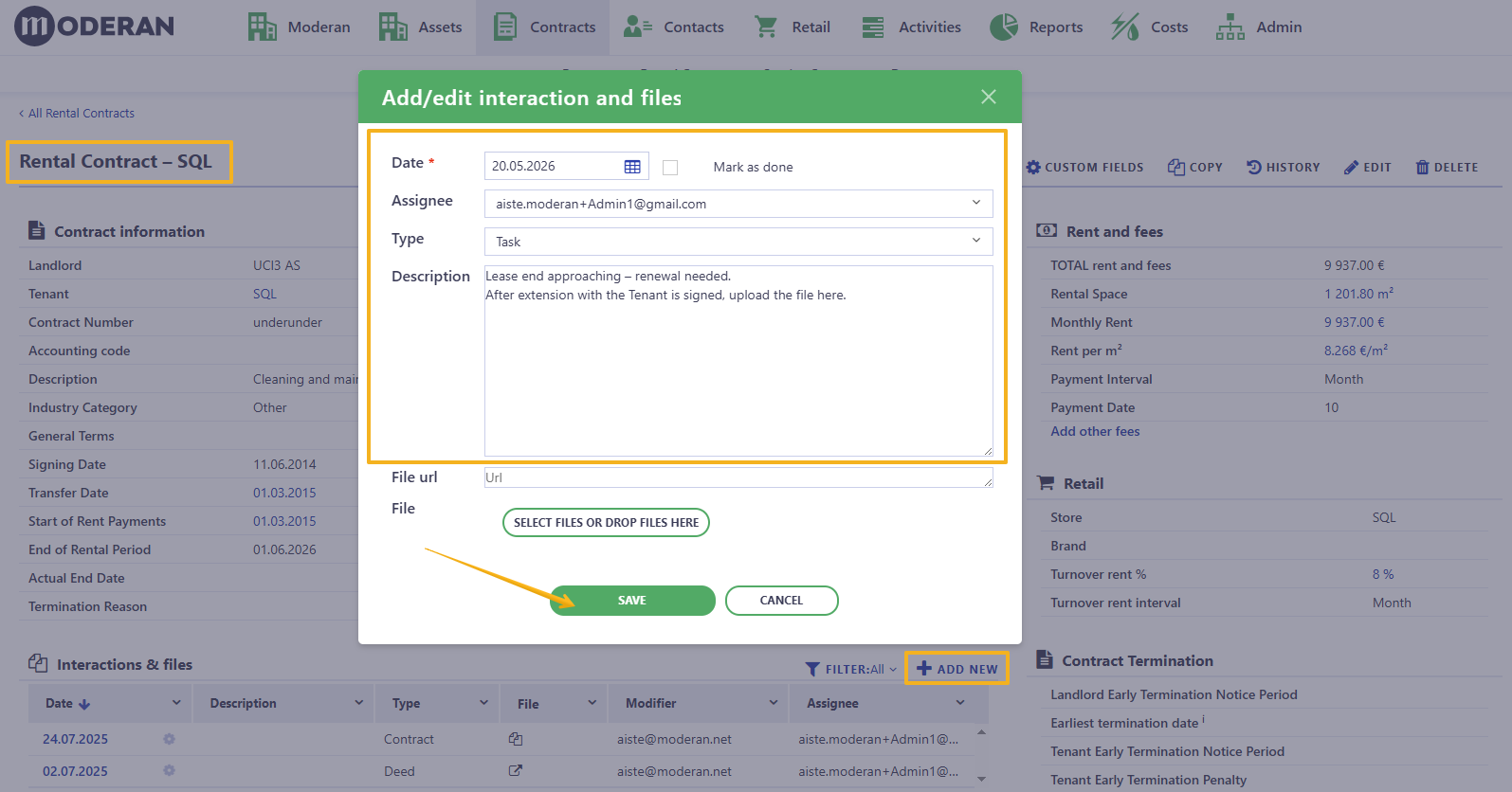
Assignment notification. When you assign the task for someone else and the date is today or later, that person gets an email notification when task is saved.
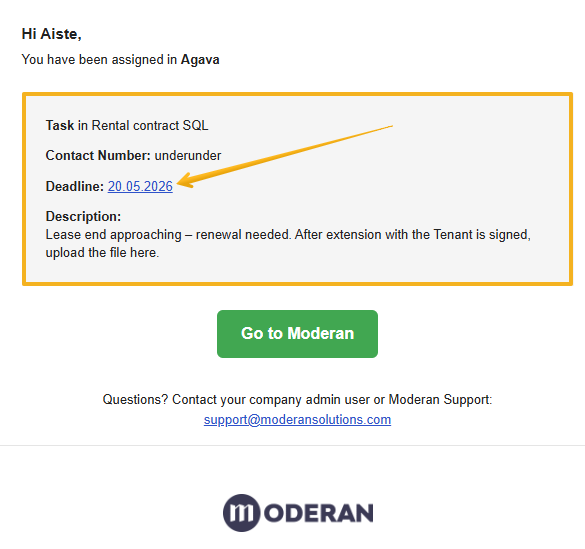 Hint: assignee can open the task straight from their email by clicking on the Deadline date.
 Step 2 — The Lease manager Reviews the Task [Lease manager]
▶ Activities
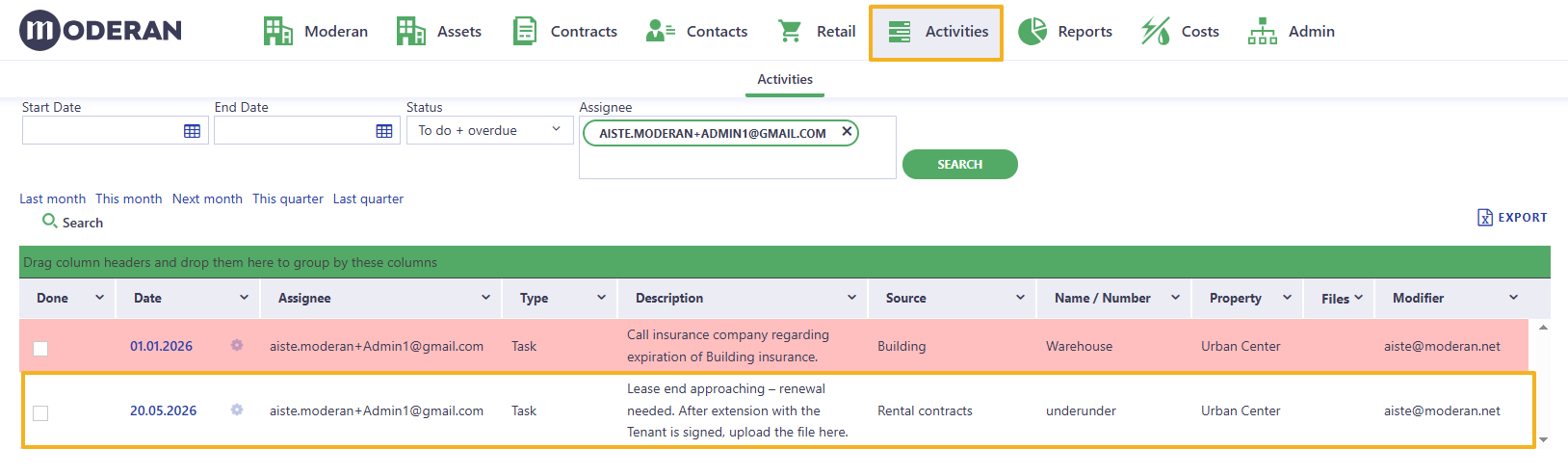
The Lease manager reviews the task in their Activities task list and initiates the lease renewal process.
Step 3 — Update the Rent Contract after the extension is agreed [Lease manager]
▶ Contracts > Rental Contract
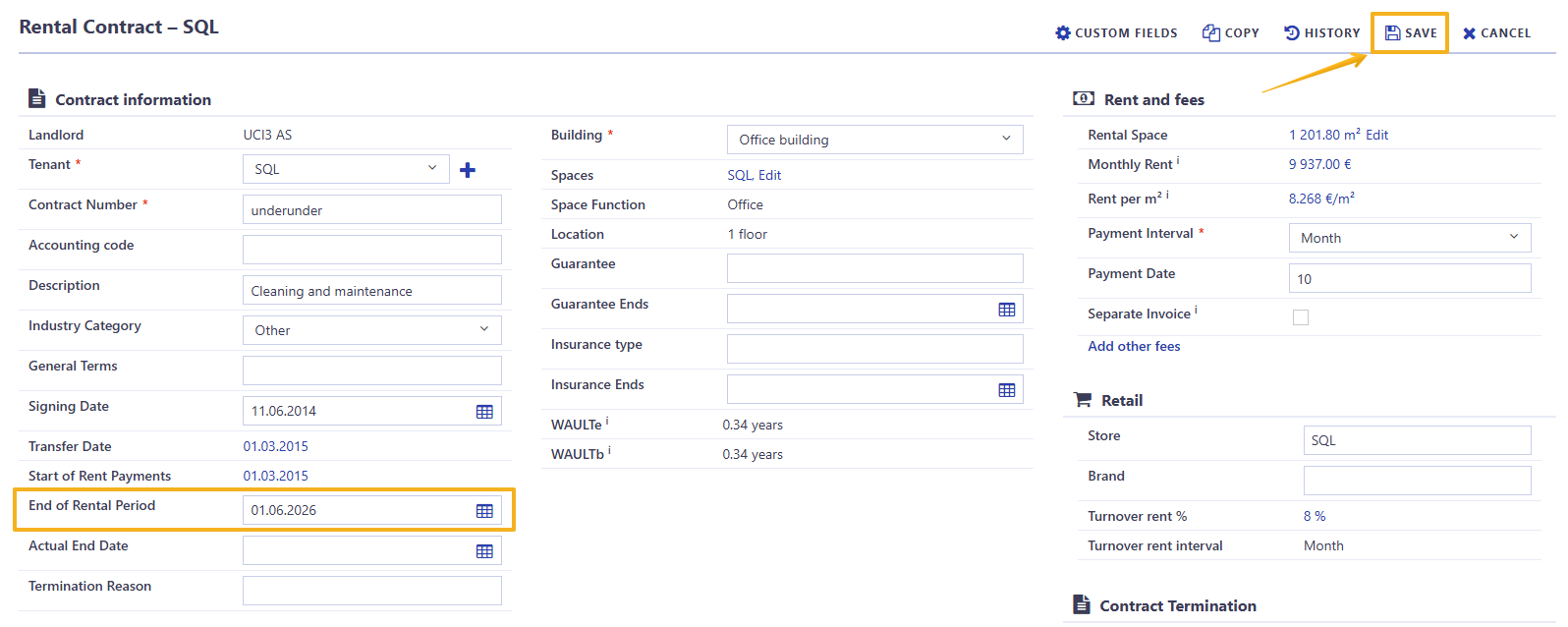
- Open the Rental Contract and click EDIT
Hint: the most convenient way to access the task is through Activities list. When you click on the Task date it automatically opens up the right location, where the task has been created (in this case - Rental Contract)
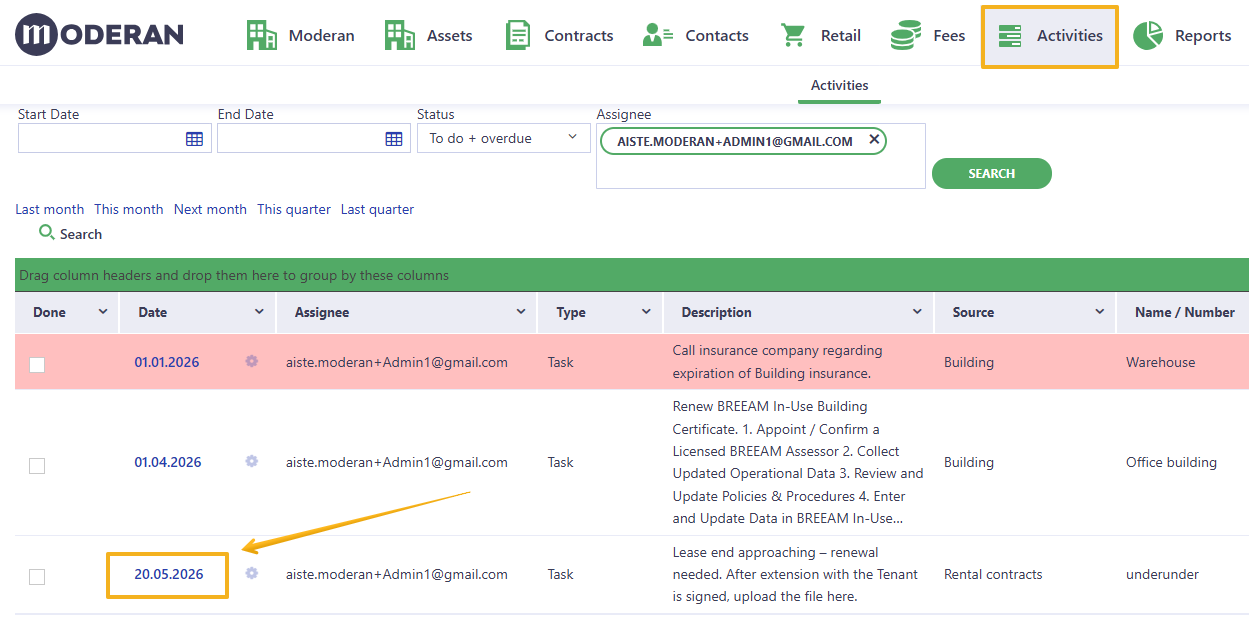
- Change the End of Rental Period date to the new agreed end date
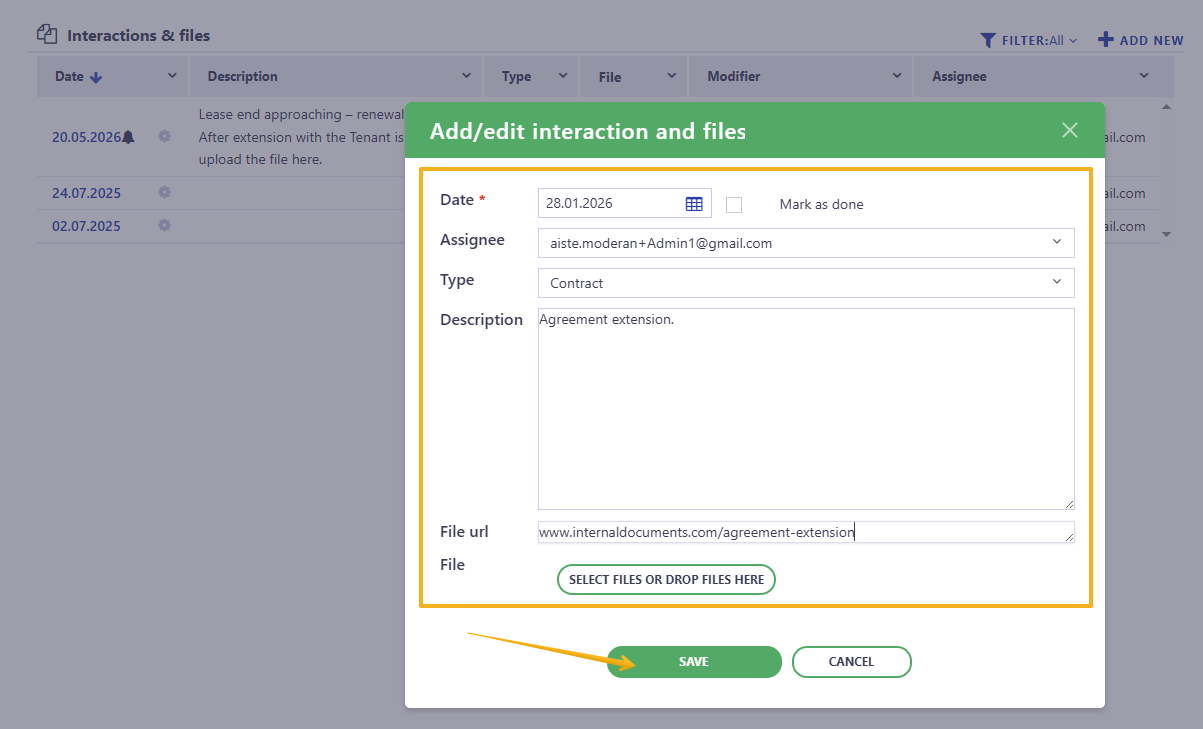
- Add the lease extension agreement or related documentation under the Interactions & files section
Step 4 — Mark the Task as Completed [Lease Manager]
▶ Contracts > Rental Contract > Interactions & files
- Go to the Rental Contract > Interactions & Files section
- Open the Lease renewal task
- Change the task Status to Done. You can also change the Date to the day, when the task has been accomplished and add additional notes for future record
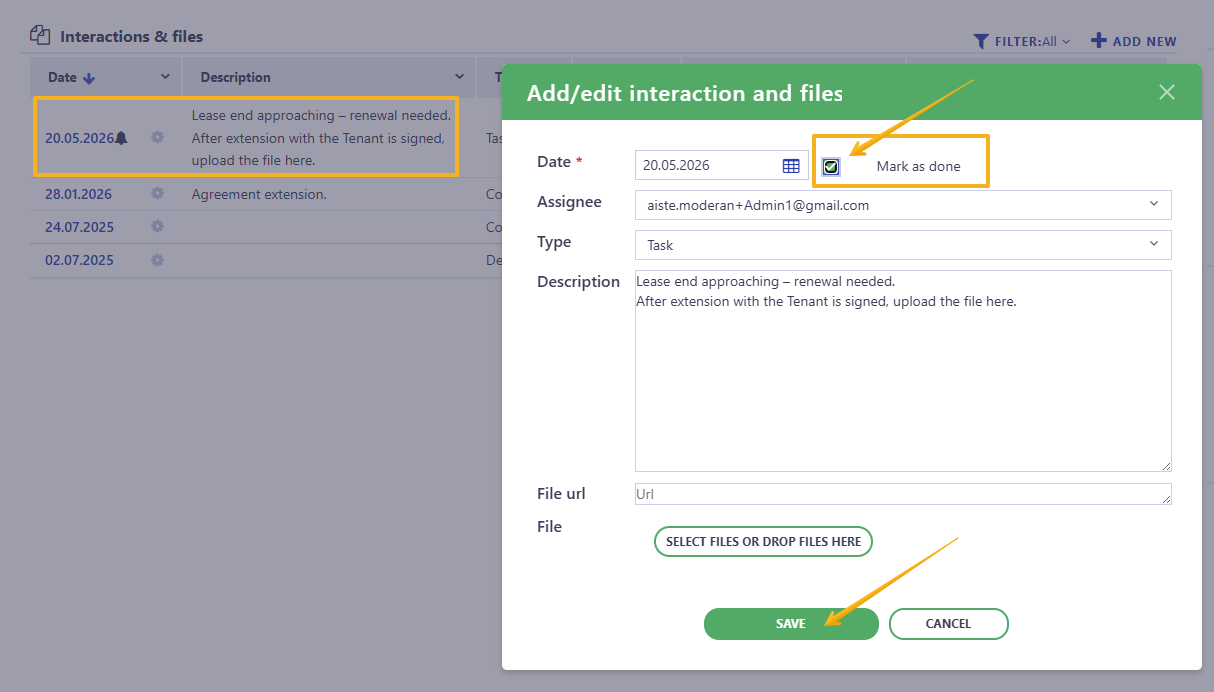
- Once the task is marked as Done, it is removed from the active task list in Activities and serves as a record that the lease renewal process has been completed.
Step 5 — Overview of the Task completion [Property Manager]
▶ Activities
In Activities list you can keep an eye on the Tasks, their statuses for each Team member (or All).
When you first open Activities, it displays only the To Do tasks assigned to you. However, in the Activities list you can filter or sort tasks by Status and Assignee, allowing you to view:
- To Do tasks (open and pending), and
- Done tasks (completed activities):
You can read more about Activities here.
Hint! Explore more articles in the Moderan Knowledge Base. If you have any questions or need assistance, feel free to contact us at support@moderansolutions.com